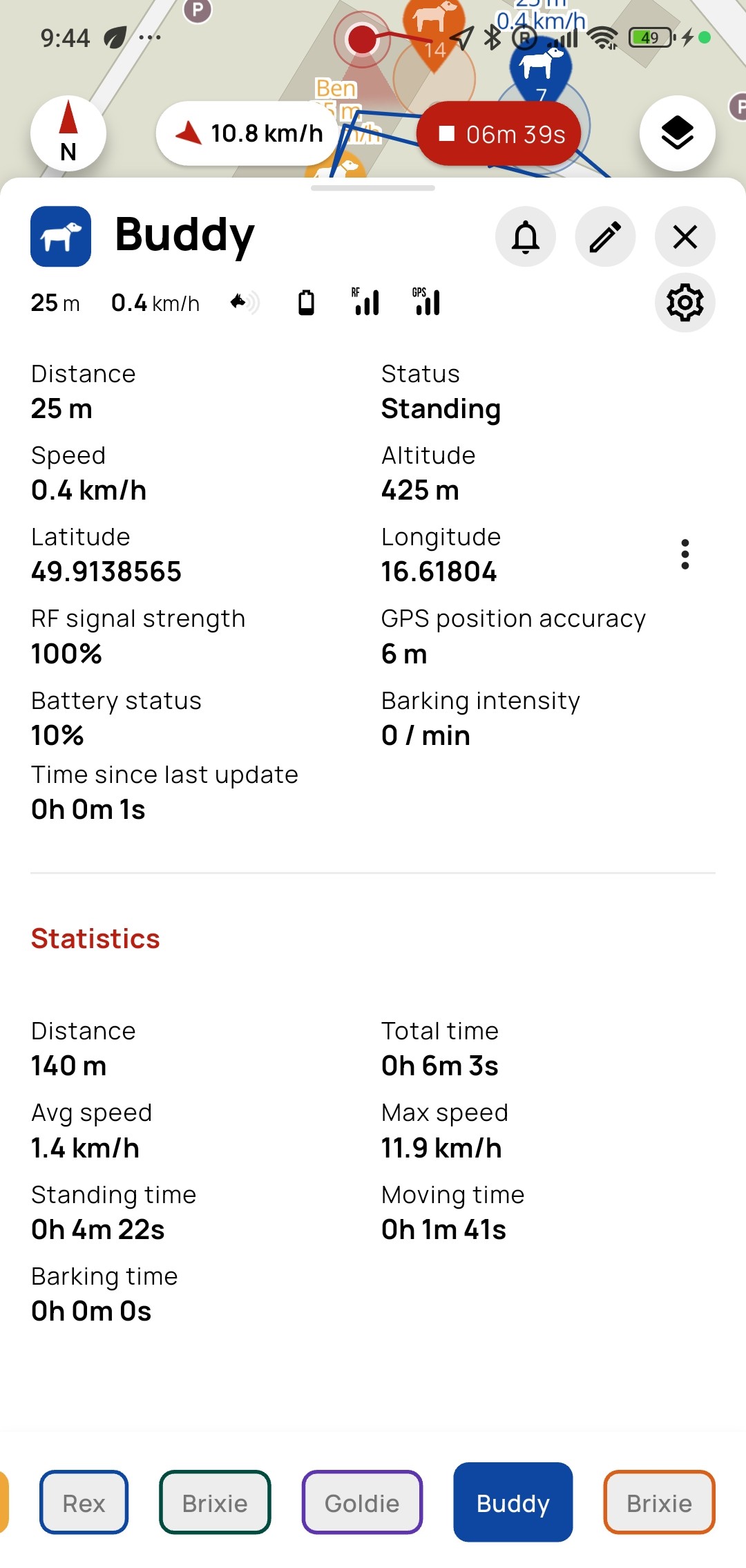
Device Detail
You can access this screen in two ways, depending on whether the collar has training functions:
-
Collars without training mode
Click on the device in the device list and the Device Detail will open immediately. -
Collars with training mode
After clicking on the device in the list, the training window will open first.
You can access the detail by dragging the training component upwards.
A long press on the dog/hunter position on the map works the same as clicking on the device in the list – it will open either the training window or the device detail.
From the device detail, you can go to notification settings or to device editing.
Icons
The icons at the top of the detail show the current status of the device:
- Dog barking – indicates that the dog is barking.
- Battery status – shows the device's current battery level.
- RF signal – shows the strength of the radio connection to the collar.
- GPS signal – shows the quality of the collar's GPS signal.
- Cloud – indicates that the collar's position was obtained through Cloud Range.
Device information
The following information is displayed on the screen:
- Distance – distance between the device and your position.
- Status – indicates whether the dog is standing or running.
- Speed – current movement speed in km/h.
- Altitude – current altitude of the device.
- Latitude and longitude – the menu under the three-dot icon lets you open the coordinates in another app or share them.
- RF signal strength – value shown as a percentage.
- GPS position accuracy – value shown in meters.
- Battery status – value shown as a percentage.
- Barking intensity – number of barks per minute.
- Last update – time elapsed since the most recent device data was received.
Statistics
When track recording is enabled, the statistics measured since recording started are displayed:
- Distance
- Total time
- Average speed
- Maximum speed
- Time standing
- Time moving
- Time barking